
Getting started with BeadMod
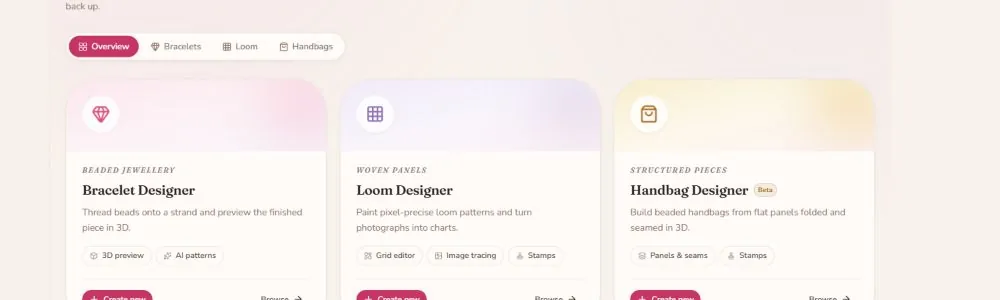
BeadMod now has three creative studios: a 3D strand editor for jewellery, a grid-based Loom Designer, and a panel-based Handbag Designer in Beta. You can start with any studio and return to all saved work from My Studio.
1. Sign in and open My Studio
After signing in, BeadMod opens the dashboard. The sidebar gives you access to:
- My Designs — your Bracelet, Loom, and Handbag work.
- Gallery — captures, AI-generated images, videos, and reference images.
- Subscription — current plan, limits, and payment history.
- Messages — support messages and replies.
The sidebar also shows your AI token balance and separate project meters for each studio. These values depend on your plan.
2. Choose the right first project
| Choose this | When you want to… | Editor |
|---|---|---|
| Bracelet Designer | Thread 3D beads onto a strand | /design/new |
| Loom Designer | Paint a flat pattern or trace an image | /design/loom |
| Handbag Designer | Build a structured piece from panels | /design/handbag |
The Bracelet Designer's Change Type menu includes bracelet, necklace, ring, earrings, and anklet layouts.
3. Follow the first-design guide
When you open an editor for the first time, Guide opens a task-based checklist. The guide points at real controls and advances when you complete the action, so you can learn by making something.
- Bracelet: add a bead, select and restyle it, shape the layout, choose a studio, save, and explore AI visualization.
- Handbag: choose a style, place a bead, choose a stitch, fill a panel, inspect the preview, save, and explore AI visualization.
- Loom: choose a bead colour, paint and fill the grid, inspect the 3D preview, adjust bead settings, save, and explore AI visualization.
You can minimize, dismiss, resume, or practise a guide again from its header button.
4. Make a first bracelet
- On the Bracelet Designer card, click Create new.
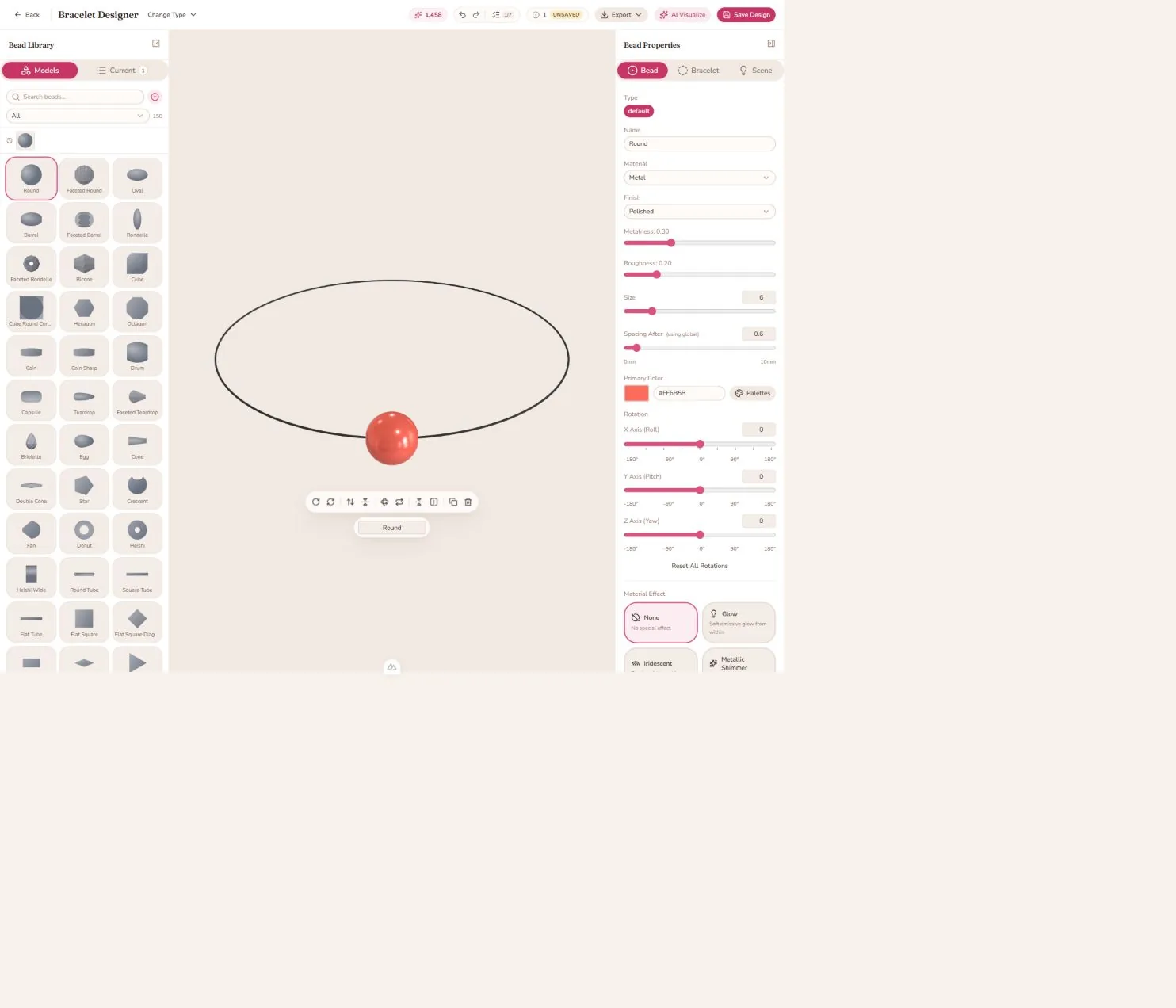
- In Bead Library, choose a shape such as Round. The new bead is added to the strand immediately.
- Select the bead in the canvas or Current list.
- In Bead Properties, adjust its name, material, finish, colour, size, spacing, rotation, effect, or texture.
- Open the Bracelet tab to change curved or linear layout, radius, arc angle, spacing, cord, and other product settings.
- Open Scene to choose an HDRI environment and tune lighting.
- Click Save Design, enter a name, and save it to My Studio.
5. Make a first Loom pattern
- On the Loom Designer card, click Create new.
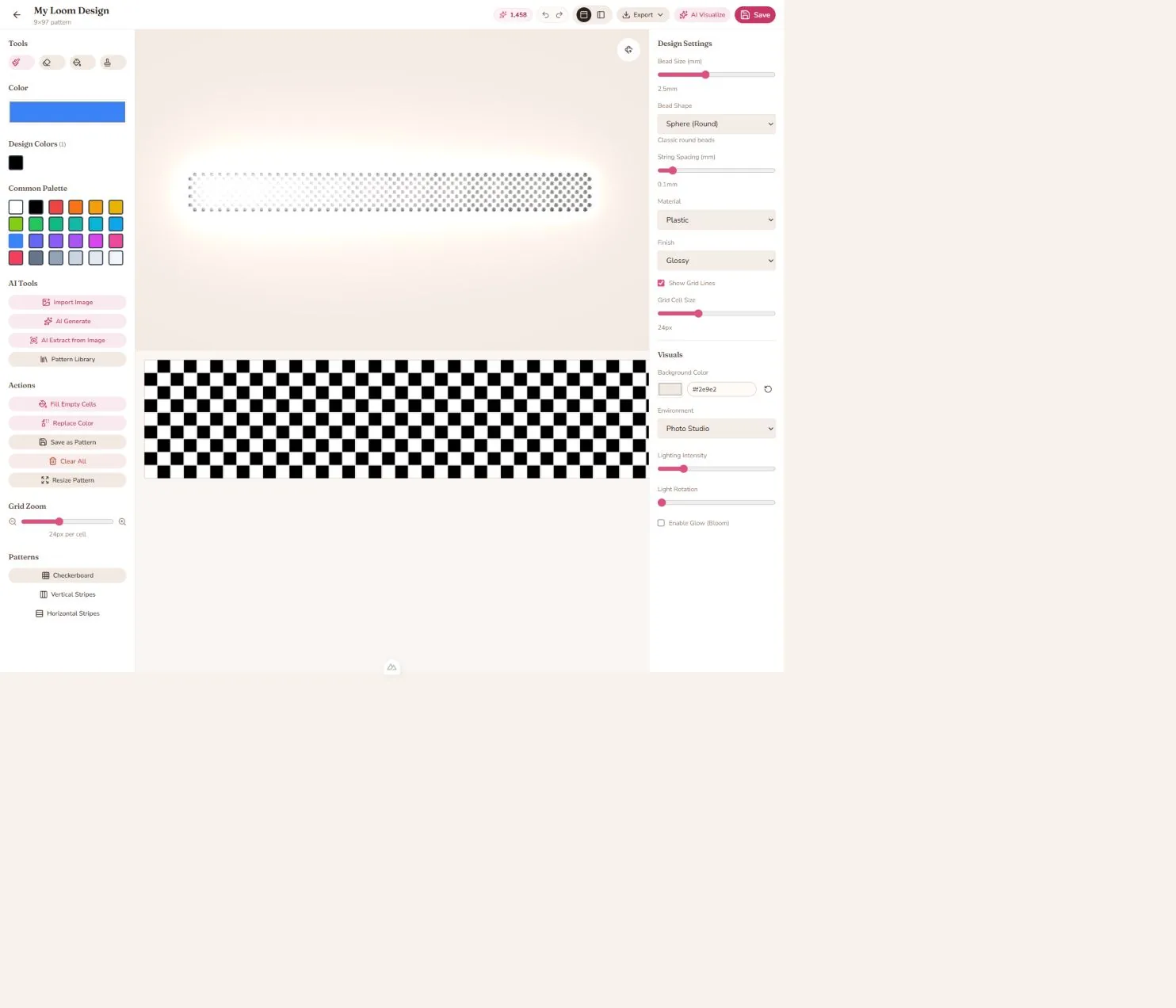
- Choose Paint Tool, select a colour, and click or drag across the grid.
- Use Checkerboard, Vertical Stripes, or Horizontal Stripes for a quick starting pattern.
- Use Fill Empty Cells, Replace Color, Resize Pattern, or Clear All as needed.
- For reusable fragments, choose Stamp Tool and create a stamp.
- For image-based work, choose Import Image or AI Extract from Image. For a text-directed pattern, choose AI Generate.
- Tune bead size, bead shape, string spacing, material, finish, grid zoom, environment, and bloom in Design Settings.
- Save the design, or use Save as Pattern for a reusable pattern-library item.
6. Make a first handbag
- On the Handbag Designer card, click Create new.
- In the Handbag settings tab, preview a style such as Clutch, Tote, Bucket, Frame Bag, or Amulet Pouch.
- Select a panel from the left rail.
- Choose a colour and use Fill, or choose Bead and tap a grid cell to place a specific model.
- Pick a stitch layout in the Panel tab. Peyote and Brick use alternating rows; Loom and Square use aligned rows.
- Switch between panels to build the front, back, bottom, sides, and flap.
- Use Fit handbag, orbit the 3D preview, or switch to Wireframe to inspect the construction.
- Save the handbag before opening AI Visualize.
See the complete Handbag Designer guide for stamps, flap bends, resizing, draft recovery, and style changes.
7. Capture and share your work
Use the editor's Export menu to access the options for that studio. Depending on the surface, you can capture an image, capture a thumbnail, record a turntable video, download loom pattern information, or save a pattern.
Use AI Visualize for a scene-based product image. Select a category and preset, or write a custom prompt. The current design is used as the structural reference; generation spends AI tokens and the result is linked to the design in Gallery.
8. Keep work safe
- Save before leaving the editor if you want the design available on another device.
- Use Undo / Redo for experiments. Keyboard shortcuts are
Ctrl+ZandCtrl+Shift+Zon Windows, orCmd+ZandCmd+Shift+Zon macOS. - Bracelet and Loom editors keep local draft history while you work. The Handbag editor can offer recovery for a newer unsaved draft after a reload.
- Check the sidebar meters or Subscription before creating another project or generating AI media.
Next steps
- Studios and product types
- Properties and materials
- Material effects
- Global defaults and sizing
- Loom AI features
- Studio features
- FAQ
Last reviewed: August 26, 2026