Loom Designer - AI Features Guide

Loom Designer - AI Features Guide

🤖 AI-Powered Pattern Creation

The Loom Designer includes two powerful AI features to help you create stunning bead patterns quickly and easily:

  1. Image-to-Pattern Conversion - Transform photos and graphics into bead patterns
  2. AI Pattern Generator - Generate patterns from text descriptions using Gemini AI

📸 Image-to-Pattern Conversion

Convert any image into a loom bead pattern with advanced customization options.

Getting Started

  1. Open the Loom Designer
    • Go to Dashboard → Loom Designs
    • Click "New Loom" or edit an existing design
  2. Access the Feature
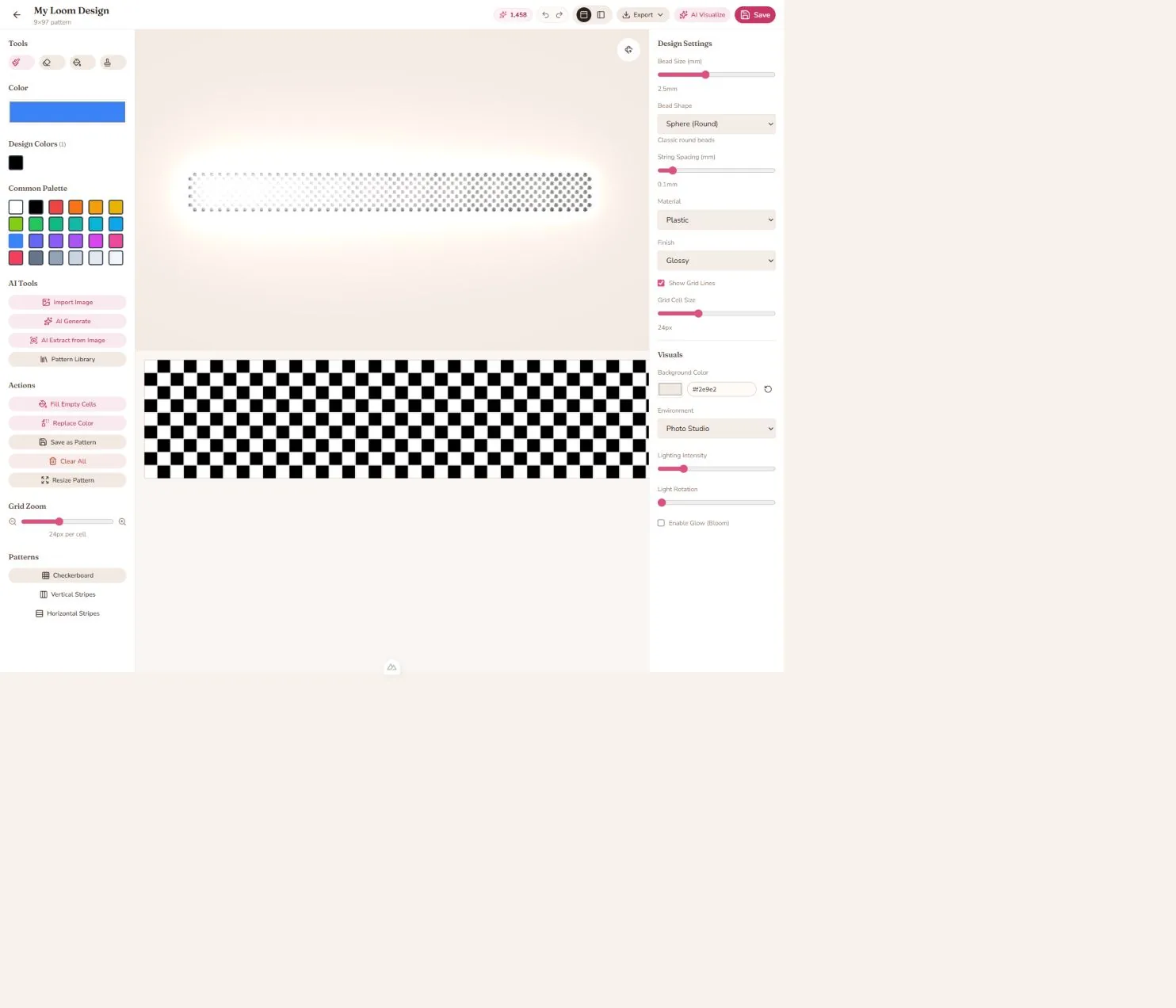
    • Look for the "AI Tools" section in the left sidebar
    • Click the "Import Image" button (blue button with image icon)

Step-by-Step Guide

1. Upload Your Image

  • Drag & Drop: Simply drag an image file onto the upload area
  • Browse: Click the upload area to select a file from your computer
  • Supported Formats: JPG, PNG, GIF, WebP, and other image formats

2. Adjust Settings

Grid Dimensions

  • The image will automatically match your current loom design dimensions
  • Example: If your loom is 20×30, the image will be converted to a 20×30 grid

Brightness Control (-100 to +100)

  • Move slider left to darken the image
  • Move slider right to lighten the image
  • Useful for enhancing contrast or fixing dark photos

Contrast Control (-100 to +100)

  • Increase contrast to make colors more distinct
  • Decrease contrast for softer color transitions
  • High contrast works well for bold patterns

Color Reduction (0 to 20 colors)

  • 0 = Off: Uses all colors from the image
  • 1-5: Creates simple, clean patterns
  • 6-10: Good balance between detail and simplicity
  • 11-20: More colors for detailed images
  • Uses intelligent clustering to pick the best colors

Use Bead Palette (Toggle)

  • ON: Restricts colors to 18 common bead colors
    • White, Black, Red, Orange, Yellow, Green, Teal, Blue, Indigo, Purple, Pink, Gray
    • Creates realistic patterns you can actually make with real beads
  • OFF: Uses exact colors from the image
    • Good for visualization, may not match available bead colors

3. Preview Your Pattern

The modal shows two previews:

  • Left: Your original image
  • Right: The converted bead pattern (grid view)

The pattern preview updates in real-time as you adjust settings!

4. Apply the Pattern

When you're happy with the result:

  • Click "Apply Pattern" button
  • Pattern is transferred to your loom grid
  • 3D visualization updates automatically
  • Success notification appears

5. Further Editing

After applying:

  • Use paint tools to refine details
  • Erase unwanted beads
  • Add custom touches
  • Adjust bead size and material settings

Tips for Best Results

DO:

  • Use high-contrast images for clearer patterns
  • Enable "Use Bead Palette" for realistic beadwork
  • Start with color reduction (5-10 colors)
  • Adjust brightness/contrast to enhance key details
  • Use images with simple, bold subjects
  • Try landscape images for horizontal looms
  • Try portrait images for vertical looms

DON'T:

  • Use extremely detailed photos (will pixelate)
  • Use images with busy backgrounds (simplify first)
  • Expect perfect color matches (beads are limited)
  • Use transparent backgrounds (treated as white)
  • Upload very large files (>10MB) - resize first

Example Workflows

Converting a Logo:

  1. Upload logo image
  2. Increase contrast (+50)
  3. Enable color reduction (3-5 colors)
  4. Turn ON bead palette
  5. Apply and refine edges

Converting a Photo:

  1. Upload photo
  2. Crop to subject before uploading (recommended)
  3. Adjust brightness to bring out details
  4. Use color reduction (8-12 colors)
  5. Enable bead palette for realistic colors
  6. Apply and manually enhance key features

Creating Pixel Art:

  1. Upload pixel art or game sprite
  2. Keep brightness/contrast at 0
  3. Use color reduction (6-10) to match original palette
  4. Enable bead palette to find closest real bead colors
  5. Apply directly

✨ AI Pattern Generator

Generate original bead patterns using text descriptions powered by Google Gemini AI.

Getting Started

  1. Open the Loom Designer
    • Go to Dashboard → Loom Designs
    • Click "New Loom" or edit an existing design
  2. Access the Feature
    • Look for the "AI Tools" section in the left sidebar
    • Click the "AI Generate" button (blue button with sparkles icon)

Step-by-Step Guide

1. Choose Your AI Model

Gemini Flash (Recommended for most users)

  • ⚡ Faster generation (5-10 seconds)
  • 💰 More cost-effective
  • ✅ Great for simple to medium complexity patterns
  • 🔄 Perfect for quick iterations and experiments

Gemini Pro (For complex patterns)

  • 🎨 Better quality and detail
  • 🧠 Understands complex prompts better
  • ⏱️ Slower generation (10-30 seconds)
  • 💎 Best for intricate, multi-element designs

When to use each:

  • Flash: Geometric patterns, simple shapes, color gradients, basic designs
  • Pro: Detailed scenes, complex compositions, realistic objects, artistic patterns

2. Describe Your Pattern

You have two options:

Option A: Use Quick Examples

  • Click any of the 6 example buttons:
    • ❤️ Heart: Red heart shape
    • 🌸 Flower: Colorful flower with petals
    • Star: Bright yellow star
    • Geometric: Triangles and diamonds
    • 🌊 Waves: Ocean wave pattern
    • ⛰️ Mountains: Mountain landscape

Option B: Write Custom Prompt

  • Type your own description in the text area
  • Be as specific as possible (see tips below)

3. Select a Style (Optional)

Choose from style presets to guide the AI:

  • Default: No specific style, AI decides
  • Geometric: Triangles, squares, diamonds, abstract shapes
  • Floral: Flowers, leaves, botanical patterns
  • Abstract: Artistic, non-representational patterns
  • Tribal: Traditional, ethnic-inspired designs
  • Minimalist: Simple, clean, modern patterns
  • Gradient: Smooth color transitions, ombre effects

4. Generate Pattern

  • Click "Generate Pattern" button
  • Wait 5-30 seconds (varies by model)
  • Loading indicator shows progress
  • Pattern preview appears when complete

5. Review & Apply

If you like it:

  • Click "Apply Pattern" to use it in your design
  • Pattern transfers to main grid
  • 3D visualization updates

If you want to try again:

  • Click "Regenerate" for a variation
  • Or modify your prompt and generate again
  • Each generation creates a unique pattern

Writing Great Prompts

Formula for Success

[Subject] + [Colors] + [Placement] + [Style Details]

Good Prompts Examples

Simple & Effective:

"A red heart in the center on white background"
"Blue waves across the bottom with white foam"
"Yellow sunflower with green stem"

Medium Complexity:

"Geometric pattern with blue triangles and purple diamonds alternating"
"Rainbow stripes running diagonally from corner to corner"
"Pink cherry blossom branches with brown stems on light blue sky"

Detailed & Specific:

"A colorful butterfly with blue and purple gradient wings, yellow body, centered on white background with small green leaves in the corners"
"Tribal pattern with red and black diamonds forming a border around a central yellow sun symbol"
"Ocean sunset scene with orange and pink gradient sky at top, blue water in middle, and yellow sun half-visible at horizon"

Prompt Tips

DO:

  • Mention specific colors by name
  • Specify placement (centered, top-left, border, etc.)
  • Describe shapes clearly (heart shape, circular, triangular)
  • Keep it focused on 1-3 main elements
  • Use adjectives (bright, dark, colorful, pastel)
  • Mention background color
  • Reference patterns (stripes, dots, zigzag)

DON'T:

  • Be too vague ("something pretty")
  • Request too many elements (AI will simplify)
  • Use phrases like "realistic photo" (this is for patterns)
  • Expect perfect accuracy (AI is creative)
  • Forget to mention colors
  • Request trademarked characters or logos

Advanced Prompt Techniques

Using Placement:

"Blue butterfly in top-right corner"
"Border of red hearts around the edges"
"Centered diamond with gradient colors"

Combining Styles:

"Geometric flowers with minimalist design"
"Tribal pattern with gradient colors"
"Abstract waves with floral elements"

Specifying Patterns:

"Polka dots in rainbow colors on black"
"Checkerboard pattern with blue and green"
"Diagonal stripes alternating red and white"

Example Use Cases

Bracelets:

"Simple heart pattern in pink and red, suitable for a bracelet"
"Name 'LOVE' in block letters with rainbow colors"
"Small alternating stars and hearts border"

Bookmarks:

"Vertical gradient from purple to blue with white stars"
"Elegant floral vine running along the sides"
"Geometric pattern with repeating triangles"

Wall Hangings:

"Large mandala design with blue and purple geometric patterns"
"Sunset over mountains with orange, pink, and purple sky"
"Abstract ocean waves with shades of blue and teal"

Coasters:

"Circular pattern with concentric circles in rainbow colors"
"Flower in the center with petals in pink and yellow"
"Coffee cup icon in brown on cream background"

Troubleshooting

Pattern doesn't match my prompt:

  • Try being more specific with colors
  • Add placement details (centered, top, bottom)
  • Switch to Gemini Pro model for complex requests
  • Click "Regenerate" for different interpretation
  • Simplify your prompt if too complex

Generation takes too long:

  • Switch to Gemini Flash model (faster)
  • Simplify your prompt
  • Check internet connection
  • Wait up to 60 seconds before timing out

Colors aren't what I expected:

  • Explicitly name colors in your prompt
  • Use specific color names (sky blue, forest green)
  • Mention color palette (pastel, bright, dark)
  • Try regenerating for variation

Pattern is too simple/complex:

  • For simpler: Use "minimalist" style
  • For more complex: Switch to Gemini Pro model
  • For more detail: Add descriptive elements to prompt
  • For less detail: Use "simple" or "basic" in prompt

🎨 Combining Both Features

Get the best of both worlds by using Image-to-Pattern and AI Generator together!

Workflow 1: AI + Manual Refinement

  1. Use AI Generator to create base pattern
  2. Apply to grid
  3. Use paint tools to add custom details
  4. Adjust individual beads as needed

Workflow 2: Image + AI Enhancement

  1. Convert image to pattern
  2. Note any missing elements
  3. Use AI to generate complementary patterns
  4. Manually combine best elements

Workflow 3: Hybrid Approach

  1. Start with AI-generated background
  2. Use Image-to-Pattern for a focal point
  3. Paint custom borders or details
  4. Combine all elements into final design

💡 Creative Ideas

Pattern Categories

Nature Themes:

  • Flowers, trees, leaves
  • Animals, birds, butterflies
  • Sunsets, rainbows, clouds
  • Mountains, waves, forests

Geometric Patterns:

  • Triangles, diamonds, hexagons
  • Stripes, chevrons, zigzags
  • Checkerboard, polka dots
  • Mandala, kaleidoscope

Seasonal:

  • Spring: Flowers, pastel colors
  • Summer: Sun, beach, bright colors
  • Fall: Leaves, warm colors
  • Winter: Snowflakes, cool colors

Occasions:

  • Holidays: Hearts, stars, themed icons
  • Celebrations: Balloons, confetti
  • Sports: Team colors, mascots
  • Hobbies: Music notes, books, games

Color Palettes

Classic:

  • Monochrome: All shades of one color
  • Black & White: High contrast
  • Primary: Red, blue, yellow

Trending:

  • Pastel Rainbow: Soft multicolor
  • Earthy: Browns, greens, tans
  • Ocean: Blues, teals, aqua
  • Sunset: Orange, pink, purple

Themed:

  • Royal: Purple, gold, deep blue
  • Forest: Greens, browns, earth tones
  • Galaxy: Purple, blue, black, sparkle
  • Candy: Pink, yellow, light blue

📊 Performance & Limits

Image-to-Pattern

  • Speed: <1 second conversion
  • Max File Size: 10MB recommended
  • Max Grid: 100×100 cells
  • Color Reduction: Processes in ~100ms

AI Generator

  • Speed: 5-30 seconds (model dependent)
  • Max Grid: 100×100 cells (10,000 beads)
  • API Limits: Gemini free tier applies
  • Rate Limit: ~60 requests per minute

Optimization Tips

  • Use smaller grids for faster generation
  • Flash model is 2-3x faster than Pro
  • Lower color reduction for faster image processing
  • Disable bead palette for quicker conversions

🔒 Privacy & Data

Your Data is Safe

  • Images are processed locally in your browser
  • AI prompts sent to Google Gemini API
  • No images stored on our servers
  • Patterns saved to your Firebase account
  • Only you can access your designs

What Gets Sent to AI

  • Your text prompt
  • Grid dimensions (rows × cols)
  • Style selection (optional)
  • NOT sent: Images, personal info, other designs

❓ Frequently Asked Questions

Q: Can I use copyrighted images? A: Only use images you own or have permission to use. The tool is for personal use and creative inspiration.

Q: Will my AI-generated pattern be unique? A: Each generation is unique! Even the same prompt produces variations. Your specific combination is one-of-a-kind.

Q: Can I sell items made from AI patterns? A: Yes! Once generated, the pattern is yours to use commercially. Check Google's AI terms for details.

Q: How accurate is the image conversion? A: It's approximate - small grids (20×30) will be pixelated. Larger grids (50×50+) capture more detail.

Q: Why don't the colors match exactly? A: Real beads come in limited colors. Enable "Use Bead Palette" to see what's actually achievable.

Q: Can I save multiple variations? A: Yes! Save each variation as a separate design. They all appear in your dashboard.

Q: Does AI understand beadwork? A: The AI is trained on general patterns. It creates visually appealing designs, but may need manual refinement for complex beadwork.

Q: Can I edit AI patterns after applying? A: Absolutely! Use all the standard tools (paint, erase, fill) to customize your AI-generated pattern.

Q: What if generation fails? A: Check your internet connection, simplify your prompt, or try again. The AI may occasionally timeout.

Q: Can I use both features on the same design? A: Yes! Apply image pattern, then generate AI elements, or vice versa. They're fully compatible.


🚀 Next Steps

Now that you know how to use the AI features:

  1. Experiment freely - Try different prompts and images
  2. Start simple - Master basic patterns before complex ones
  3. Combine techniques - Mix AI, images, and manual painting
  4. Save variations - Keep different versions of your ideas
  5. Share your creations - Show off your beautiful bead patterns!

Quick Start Checklist

  • Try the "Heart" quick example
  • Upload a simple image (logo or icon)
  • Write a custom AI prompt
  • Test both Flash and Pro models
  • Apply a pattern and refine it manually
  • Save your first AI-assisted design
  • Experiment with color reduction
  • Try different style presets

🎓 Learn More

Related Documentation:

Need Help?

  • Check the FAQ
  • Review example prompts above
  • Experiment with the quick examples
  • Save your progress frequently

Happy Beading with AI! ✨🤖🧵