
Bead Library Reference
The Bracelet Designer’s Bead Library contains 158 active 3D models. Use the Models tab to browse them, Current to review beads already in the design, and the search and category controls to narrow the list.
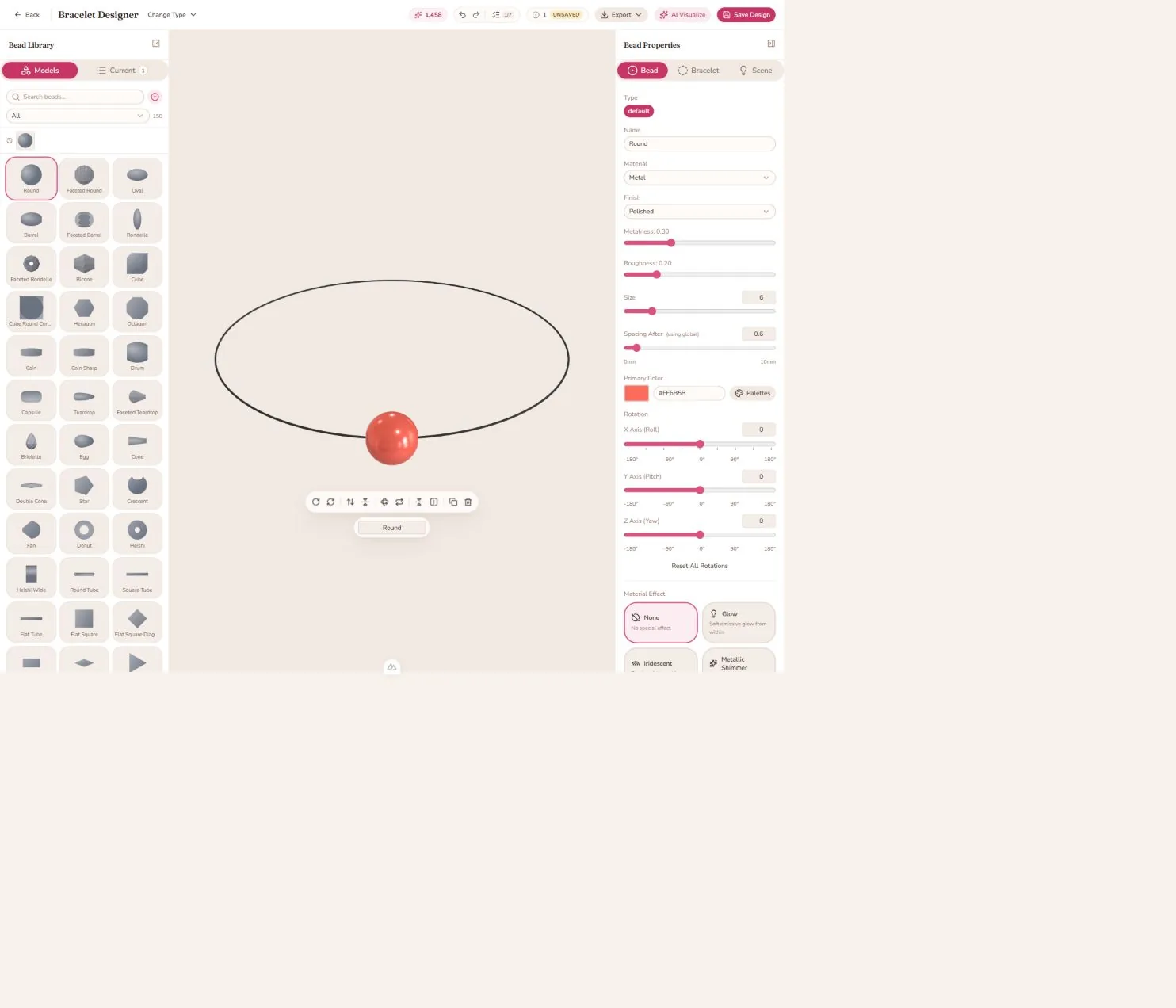
Current library categories
| Category | Count | Typical use |
|---|---|---|
| Basic | 12 | Everyday round, oval, barrel, and disc forms |
| Caps | 14 | End or section finishing pieces |
| Charms | 10 | Decorative focal accents |
| Clasps | 12 | Functional-looking closures |
| Faceted | 6 | Cut surfaces and sparkle |
| Flat | 5 | Layered or graphic profiles |
| Geometric | 9 | Cubes, cones, polygons, and angular motifs |
| Lettered Charms | 53 | Uppercase, lowercase, and symbol charms |
| Letters | 3 | Round, cube, and coin letter beads |
| Shapes | 7 | Stars, crescents, teardrops, and other motifs |
| Spacers | 24 | Small separators and rhythm between focal beads |
| Tubes | 3 | Round, square, and flat tubular forms |
Counts describe the active static library and may change as models are added or removed.
Add a library bead
- Open Bracelet Designer.
- Search by name or choose a category.
- Select a model to add it to the strand.
- Select the bead in the 3D preview or Current list to edit it.
Library items provide a starting model. You can change color, size, material, finish, spacing, rotation, texture, and effects after insertion.
Letters and charms
Use Lettered Charms for decorative letter models and Letters for the dedicated letter-bead shapes. The selected bead’s property panel also supports custom text fields where available. For readable words, keep letters grouped, use spacing between words, and check the camera view at the intended scale.
Caps, clasps, and spacers
- Caps are useful at the ends of a strand or between sections. The editor can adjust cap spacing when the cap is flipped left or right.
- Clasps help communicate a closure in a product concept and can sit at either end of a strand.
- Spacers create breathing room and visual rhythm between larger or more decorative beads.
Create a custom bead
Choose Create custom bead in the library. The custom bead editor lets you shape a profile with superformula controls, choose a color, material, and finish, preview it in 3D, and add it to the current design. Custom beads appear under the Custom category for the signed-in user.
Materials and finishes
For a selected bead, the current Bracelet Designer exposes these base materials in the property panel: Metal, Plastic, Glass, Wood, Stone, and Translucent. Finish options are Polished, Matte, Frosted, Faceted, Brushed, Hammered, and Glossy.
Use Properties and materials for the full control map and Material effects for Glow, Iridescent, Holographic, and the other effect layers.
Choosing a balanced set
Start with one repeatable base shape, add one focal charm or faceted model, and use spacers to control rhythm. Keep the bead scale and spacing consistent while composing, then adjust the focal bead’s size or finish at the end.
Related guides
Last reviewed: August 26, 2026.